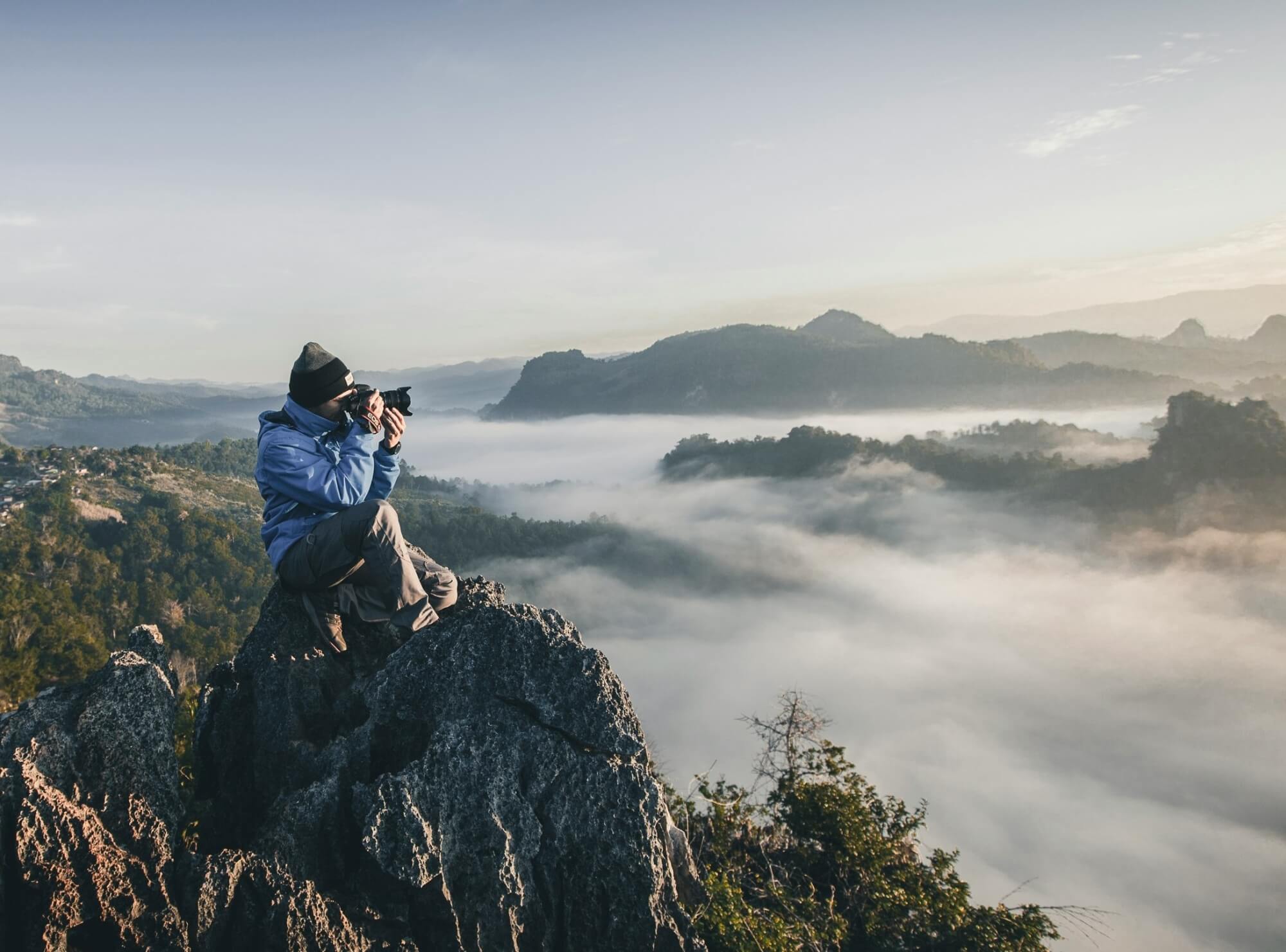
A person in the mountains holds a camera and takes a picture of a postcard motif.

Design Postcards with Free Professional Images

The weather on vacation was bad or you are looking for a breathtaking motif? Here's how to find royalty-free images and turn them into a real postcard.

We all know the feeling: You want to send a great holiday greeting, but your own phone album just doesn't offer a perfect motif. Either it was too foggy, the photo is blurry, or you simply forgot to take a good picture.

The solution is ingeniously simple: The internet is full of photographers who make their breathtaking pictures available for free. On platforms like Unsplash, you can find millions of high-resolution professional shots that you can legally use for your SlickPostcard. In this tutorial, we will show you how to find your dream motif and turn it step by step into a real, printed postcard in our editor – including photo credits for the artist!

Part 1: Finding the perfect image on Unsplash
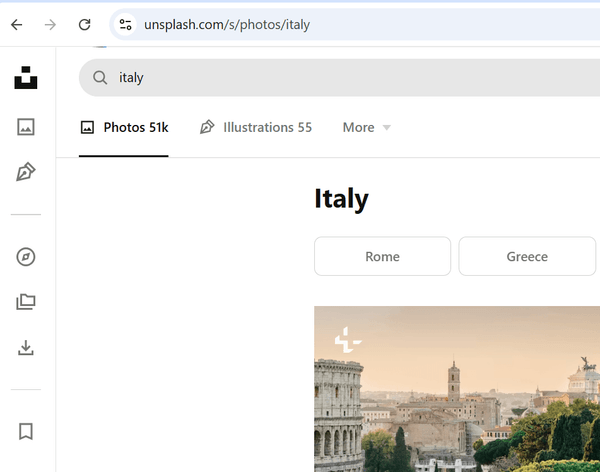
Unsplash.com is the best source for free, high-resolution images. Here is how you do it:
Screenshot of the Unsplash search bar

Search in English

Go to Unsplash.com. Since the platform is international, you will get the best results with English search terms. If you are looking for a beach in Mallorca, enter e.g. "Mallorca Beach" or "Spain Coast". Note: Images with an "Unsplash+" badge require payment. You can recognize free images by the fact that they don't have such a badge.
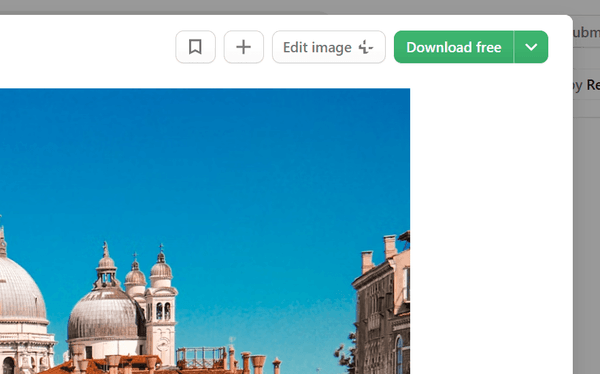
Screenshot of the download button on Unsplash

Select and download image

Click on the image you like best. In the top right corner you will find the green button "Download free". The image will now be downloaded in highest quality.

Part 2: Creating your postcard in the SlickPostcard Editor
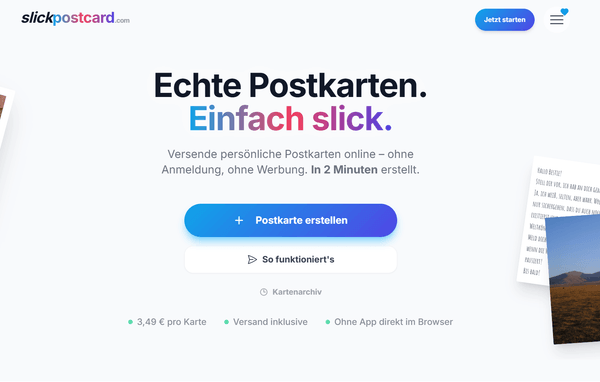
You downloaded your image? Perfect! Now let's get it on paper in 10 simple clicks.
Screenshot: Clicking the New Postcard button

Step 1: Start a new postcard

On our homepage, simply click the "New Postcard" button. Don't worry, you don't need to register or download an app – you'll land directly in the browser editor.
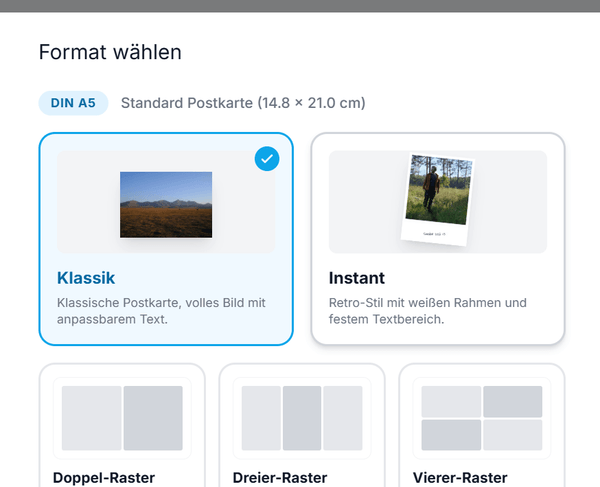
Screenshot: Selecting the Classic template in the editor

Step 2: Select template

Now choose the appropriate layout for your image. For a strong professional photo, we recommend the "Classic" template for full image impact or the "Instant" template for a cool instant photo look.
Screenshot: Clicking on the image placeholder

Step 3: Select image

You will now see a placeholder on the front of the card. Simply click on the free area to open your device's file browser.
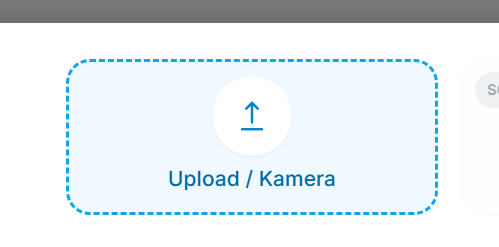
Screenshot: Photo upload window

Step 4: Upload photo

Now select the photo you downloaded from Unsplash to your smartphone or computer in the previous step.
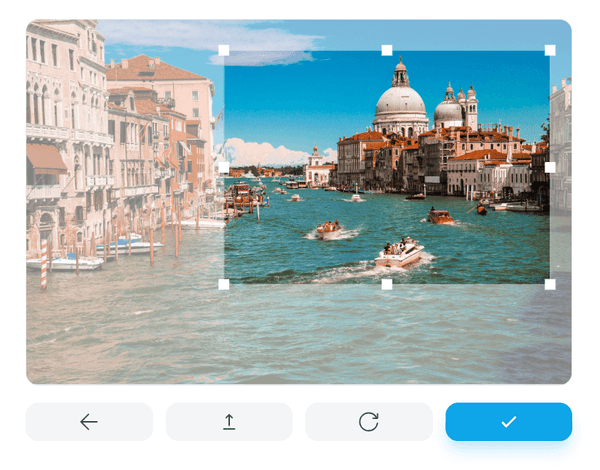
Screenshot: Adjusting the image crop in the editor

Step 5: Choose crop

Depending on the format of the downloaded image, you may now need to determine the optimal crop. Move the image or zoom in until the main motif sits perfectly on the card.
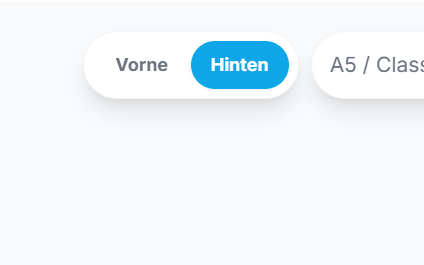
Screenshot: Switching to the back of the postcard

Step 6: Switch to the back

The motif is perfectly positioned! Click the button below to turn the card over and start designing the back.
Screenshot: Entering photo credits on the card

Step 7: Add photo credits

Time for good karma: Name the creator of the image. Use the "Design" button below to access the text field we've provided for image credits. Enter e.g. "Photo by [Photographer] on Unsplash" to support the artist.
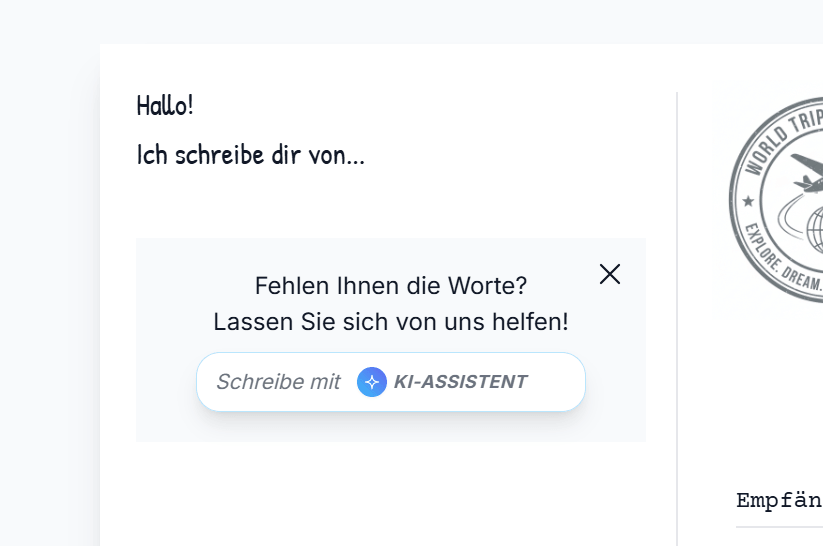
Screenshot: Typing personal text in the left field

Step 8: Write a personal text

Now comes your greeting! Type in your text. You can adjust the font or – if you're at a loss for words – ask our AI for creative help.
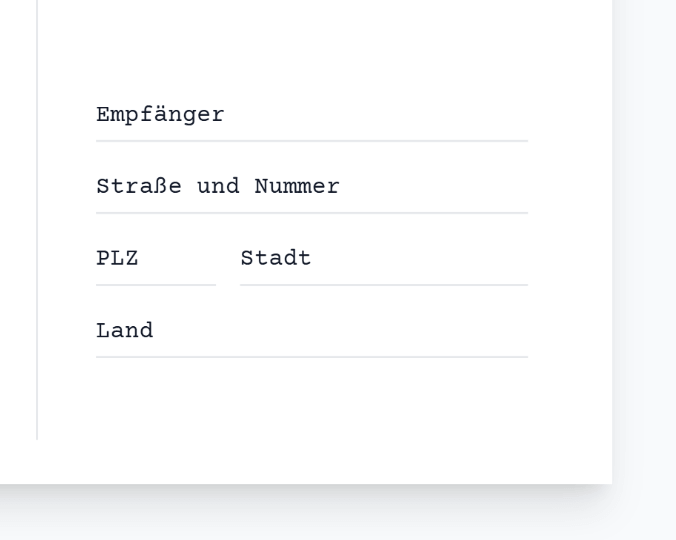
Screenshot: Entering the recipient address

Step 9: Enter address

Enter the recipient's address on the right side. Make sure the country and postal code are correct so the card arrives safely.
Screenshot: The finished card in the shopping cart / checkout

Step 10: Done & Order

Click "Finalize". The postcard is now in your shopping cart. Click the "Send" button to go to the secure checkout process. We will then take care of printing and worldwide shipping for you!

Frequently Asked Questions about Free Images

Where can I find free motifs for my postcards?

There are various image databases for royalty-free photos on the internet. The best-known source is Unsplash.com, where photographers provide millions of breathtaking images for free. Alternatives are Pexels or Pixabay.

Is the use of Unsplash images for postcards really free and legal?

Yes! All regular photos on Unsplash can be downloaded for free and used for commercial as well as private purposes. You do not need permission, although crediting the photographer is always appreciated. The exception is images with an "Unsplash+" badge, these require a paid subscription.

Can I print other people's images from the internet as a postcard?

It depends. Images from Google or Instagram are often protected by copyright and strictly speaking cannot be printed even for private postcards without permission. But if you use images from platforms for royalty-free photos (like Unsplash), you are on the safe side!

Which format (portrait or landscape) is better suited?

Our postcards (DIN A6) can be printed in both portrait and landscape format. Simply choose the picture you like best. You can adjust the crop with millimeter precision later in the SlickPostcard editor.

How do I mention the photographer (credits) on the card?

That's a great gesture! In the editor, you can easily add a small text on the back of the postcard. For example, write on the left edge: "Photo by [Photographer's Name] on Unsplash".